> ## Documentation Index
> Fetch the complete documentation index at: https://qovery-docs-karpenter-stable-toleration-and-metrics-profiles.mintlify.site/llms.txt
> Use this file to discover all available pages before exploring further.
# Environment Variables
> Manage environment variables and secrets for your services
## Overview
Environment variables are key-value pairs that configure your applications at runtime and during the build. Qovery provides comprehensive variable management with support for secrets, multiple scopes, interpolation, file-based variables, and Dockerfile build arguments and secrets.
## Variable Types
Qovery supports two types of environment variables:
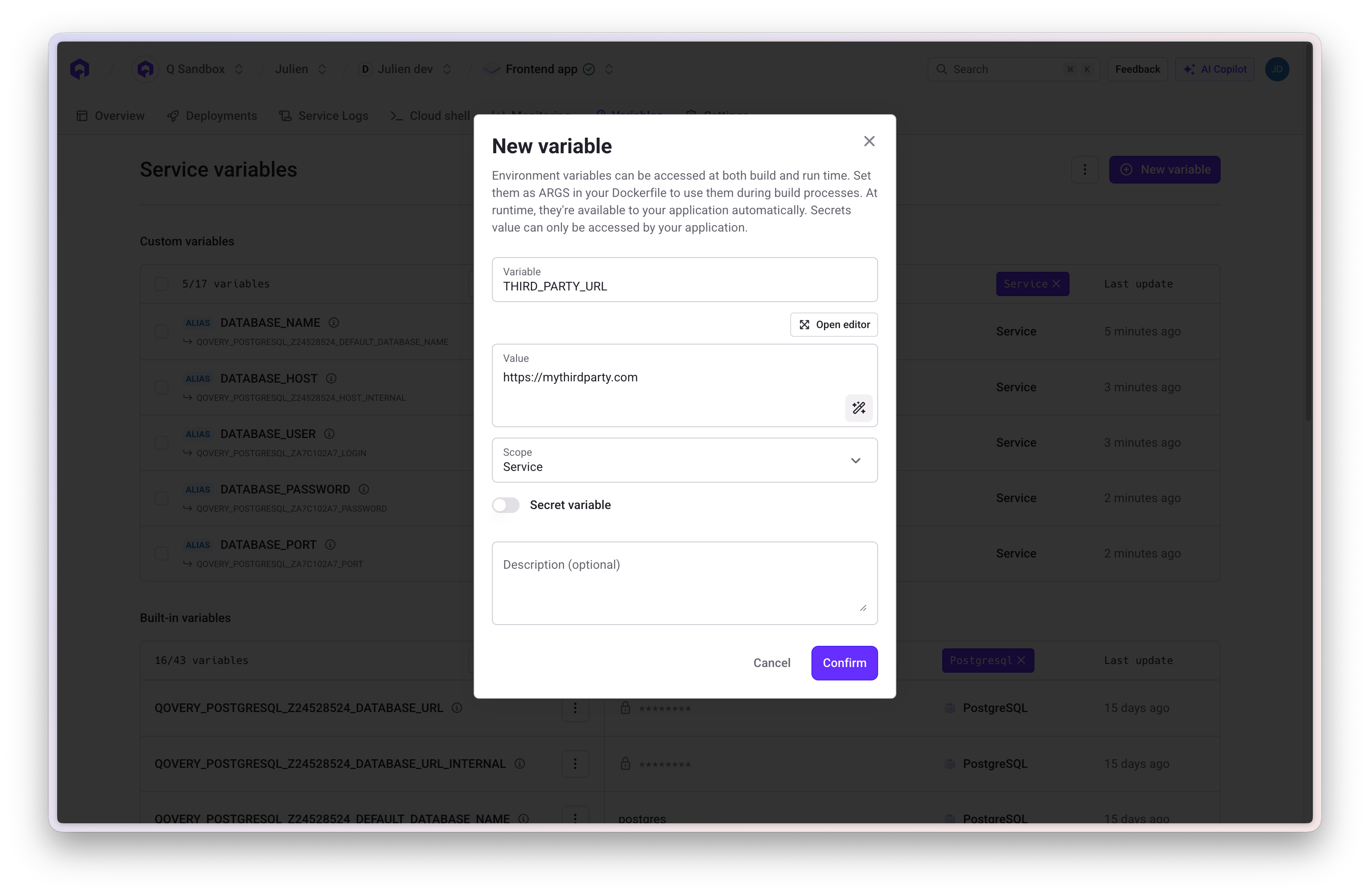
### Key/Value Variables
Standard environment variables accessible in your application:
```bash theme={null}
NODE_ENV=production
API_URL=https://api.example.com
MAX_CONNECTIONS=100
```
**In Application Code**:
```javascript theme={null}
const nodeEnv = process.env.NODE_ENV;
const apiUrl = process.env.API_URL;
```
 ### Variable as File
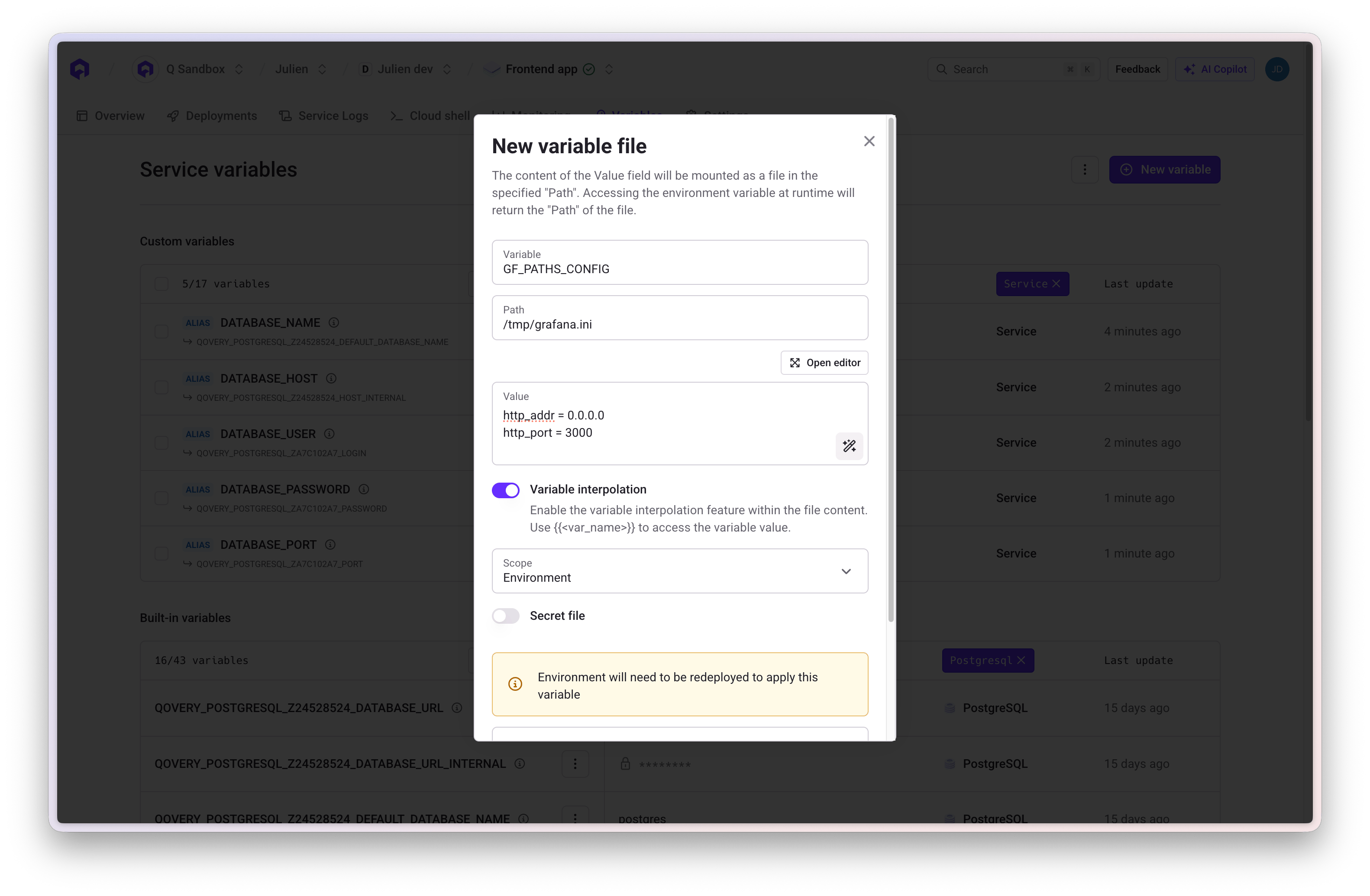
Store configuration files that are written to the filesystem at a specific path. The value is stored at the specified file path and accessible for applications or frameworks requiring file-based configuration.
**Configuration**:
* **Key**: Variable name
* **Value**: File content
* **Path**: Absolute path where file will be created (e.g., `/etc/config/app.yaml`)
### Variable as File
Store configuration files that are written to the filesystem at a specific path. The value is stored at the specified file path and accessible for applications or frameworks requiring file-based configuration.
**Configuration**:
* **Key**: Variable name
* **Value**: File content
* **Path**: Absolute path where file will be created (e.g., `/etc/config/app.yaml`)
 ## Secrets
Secrets are encrypted variables for sensitive data. They are encrypted at rest and in transit, and cannot be retrieved through the API.
**When to Use Secrets**:
* Database passwords
* API keys and tokens
* OAuth credentials
* Private keys and certificates
* Any sensitive authentication data
Always mark sensitive data as secrets. Secret values cannot be viewed in the console once created - you can only update or delete them.
## External Secrets
External secrets let you inject values stored in a third-party secrets manager directly into your services as environment variables, without copying them into Qovery. The secret value is fetched from your provider at deployment time.
**Supported providers**:
* AWS Secrets Manager
* AWS Parameter Store
* GCP Secret Manager
**When to use external secrets instead of built-in secrets**:
* Your secrets are already managed centrally in a secrets manager
* You need fine-grained access control at the secrets manager level
* You want a single source of truth across multiple tools and teams
Set up ESO and connect your cluster to AWS or GCP secrets providers
## Build-Time Variables
Variables are also available while your Dockerfile is being built, not just at runtime. Which variables reach the build, and how, is decided by your Dockerfile — not by whether a variable is marked as a secret in Qovery.
A variable reaches the build only if the Dockerfile declares its name in one of two ways:
| Declaration in the Dockerfile | How the value is passed | Where the value ends up |
| --------------------------------- | ------------------------ | ----------------------------------------------------------------------------------------------------- |
| `ARG NAME` | `--build-arg NAME=value` | Recorded in the image configuration and in the build cache. Visible to anyone who can pull the image. |
| `RUN --mount=type=secret,id=NAME` | BuildKit build secret | Mounted as a file for the duration of that one `RUN` step. Not written to an image layer. |
Variables the Dockerfile declares neither way are never sent to the build. They remain available at runtime as usual.
Marking a variable as a secret in Qovery does not change how it is passed to the build. A variable marked as a secret whose name matches an `ARG` is still passed as a build argument and ends up in the image configuration. To keep a value out of the image, mount it with `RUN --mount=type=secret` in your Dockerfile.
### Passing a Value as a Build Argument
Declare the `ARG` in your Dockerfile and create a variable with the same name:
```dockerfile theme={null}
FROM node:20
ARG NEXT_PUBLIC_API_URL
RUN npm run build
```
Use build arguments for non-sensitive values that the build needs to bake in, such as a public API URL or a feature flag.
### Mounting a Value as a Build Secret
Declare a secret mount on the `RUN` step that needs the value, and create a variable with the same name as the mount `id`:
```dockerfile theme={null}
FROM node:20
RUN --mount=type=secret,id=NPM_TOKEN \
NPM_TOKEN="$(cat /run/secrets/NPM_TOKEN)" npm ci
```
BuildKit exposes the value at `/run/secrets/` by default, or at the path given by `target=`. Because the value is mounted for that step only, it is not written to an image layer.
Use build secrets for credentials the build needs but the image must not carry: a private registry token, a package manager credential, an SSH key used to fetch a private dependency.
This is different from a **Variable as File**. A variable as file is written into the running container at the path you configure. A build secret exists only while the build step runs, and is not present at runtime.
### Rules and Limits
**`id=` is required.** Qovery rejects a Dockerfile that declares `RUN --mount=type=secret` without a literal `id=`, and the deployment fails with an error asking you to add one. Plain `docker build` would guess the name from the mount target; Qovery does not guess, because a guessed name is rarely the variable name you meant.
```dockerfile theme={null}
# Rejected: Qovery cannot tell which variable to pass
RUN --mount=type=secret,target=/etc/npmrc npm ci
# Accepted
RUN --mount=type=secret,id=NPM_CONFIG,target=/etc/npmrc npm ci
```
**An unmatched `id=` is not an error.** If no variable matches the mount `id`, BuildKit does not mount anything: the secret's path does not exist inside the step. The build itself is not failed, but a command that reads that path will fail on its own. Add `required=true` to the mount to fail the build up front instead, with `secret : not found`:
```dockerfile theme={null}
RUN --mount=type=secret,id=NPM_TOKEN,required=true npm ci
```
**Changing a build variable triggers a rebuild.** The value of every variable the Dockerfile declares — as an `ARG` or as a secret mount `id` — is part of the image tag Qovery computes. Changing a value produces a new tag, so the image is rebuilt instead of being reused.
Rotating a build secret does not by itself re-run the step that reads it. BuildKit deliberately keeps secret values out of its build cache keys, so a cached `RUN --mount=type=secret` step is reused whatever the new value is. This is usually what you want — the dependencies were already fetched — but if the step must run again, enable [build.disable\_buildkit\_cache](/configuration/service-advanced-settings#build-disable-buildkit-cache) on that service. That setting is available on applications, cronjobs and lifecycle jobs; on a Terraform service, change something the build cache does key on to force the step to re-run.
**Build logs are obfuscated only for secrets.** Qovery masks the values of variables marked as secrets in deployment logs. Mounting a plain key/value variable as a build secret does not mask it — mark it as a secret in Qovery if the value must not appear in logs.
### Supported Services
Build-time variables apply to every service Qovery builds from a Dockerfile: applications, cronjobs, lifecycle jobs, and Terraform services using a [Dockerfile fragment](/configuration/terraform#custom-build-image). Services deployed from an existing container image have no build step and are unaffected.
## Variable Scopes
Environment variables can be defined at three different scopes:
### Project Scope
**Available to**: All environments and services within the project
**Use Cases**: Organization-wide settings, shared API keys, common configuration
```bash theme={null}
COMPANY_NAME=Acme Corp
SUPPORT_EMAIL=support@acme.com
CDN_URL=https://cdn.acme.com
```
### Environment Scope
**Available to**: All services within a specific environment
**Use Cases**: Environment-specific configuration, shared database credentials, feature flags
```bash theme={null}
ENVIRONMENT=production
API_URL=https://api.production.com
ENABLE_DEBUG=false
```
### Service Scope
**Available to**: One specific service (application, job, database, etc.)
**Use Cases**: Service-specific configuration, application-unique settings
```bash theme={null}
PORT=8080
WORKERS=4
RATE_LIMIT=1000
```
### Scope Hierarchy
Variables defined at narrower scopes override those at broader scopes:
```
Service Scope (highest priority)
↓ overrides
Environment Scope
↓ overrides
Project Scope (lowest priority)
```
## Built-in Variables
Qovery automatically injects built-in variables for service interconnection and system information.
### System Variables
```bash theme={null}
# Project and Environment
QOVERY_PROJECT_ID=
QOVERY_ENVIRONMENT_ID=
QOVERY_ENVIRONMENT_NAME=production
# Service Information
QOVERY_APPLICATION_ID=
QOVERY_APPLICATION_NAME=my-api
# Infrastructure
QOVERY_CLOUD_PROVIDER=AWS
QOVERY_CLOUD_PROVIDER_REGION=us-east-1
QOVERY_KUBERNETES_CLUSTER_DOMAIN=
```
### Database Connection Variables
For each database, Qovery creates connection variables using the pattern:
`QOVERY_{DATABASE_TYPE}_{DATABASE_ID}_{PROPERTY}`
**Example - PostgreSQL Database "main-db"**:
```bash theme={null}
QOVERY_POSTGRESQL_{DATABASE_ID}_HOST_INTERNAL=z1a2b3c4-postgresql
QOVERY_POSTGRESQL_{DATABASE_ID}_PORT=5432
QOVERY_POSTGRESQL_{DATABASE_ID}_USERNAME=superuser
QOVERY_POSTGRESQL_{DATABASE_ID}_PASSWORD=
QOVERY_POSTGRESQL_{DATABASE_ID}_DEFAULT_DATABASE_NAME=postgres
QOVERY_POSTGRESQL_{DATABASE_ID}_DATABASE_URL_INTERNAL=postgresql://superuser:***@postgres-z1a2b3c4.internal:5432/postgres
```
### Application Connection Variables
Connect to other applications using the pattern:
`QOVERY_APPLICATION_{APP_ID}_{PROPERTY}`
```bash theme={null}
QOVERY_APPLICATION_{APP_ID}_HOST_INTERNAL=app-z1a2b3d5.frontend
QOVERY_APPLICATION_{APP_ID}_PORT=3000
```
Built-in variables are read-only and automatically managed by Qovery. Variable names are generated from service names with underscores replacing hyphens and converted to uppercase.
## Creating Variables
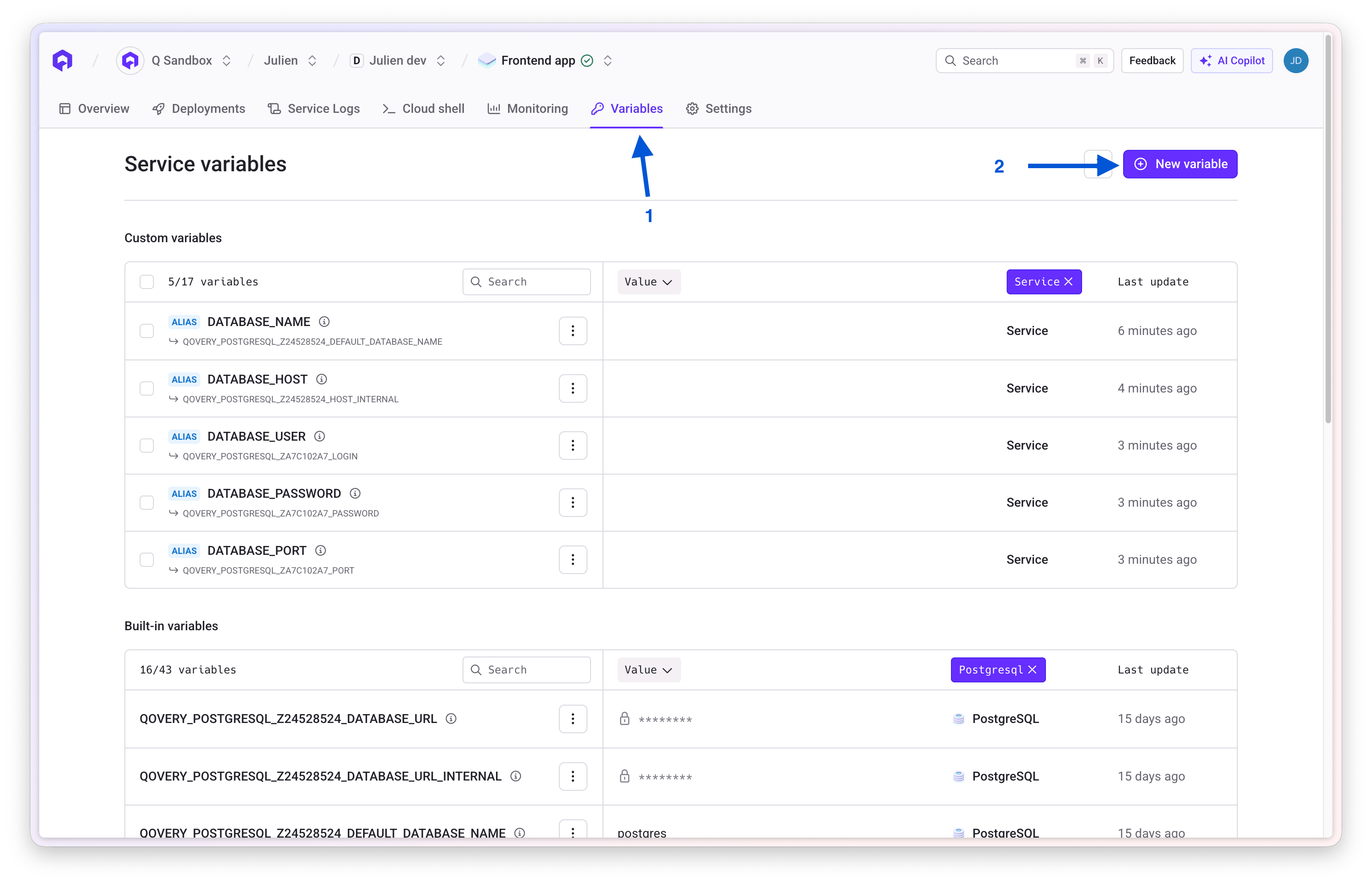
Select your application, job, or container from the environment
Click on **Variables** in the service menu
## Secrets
Secrets are encrypted variables for sensitive data. They are encrypted at rest and in transit, and cannot be retrieved through the API.
**When to Use Secrets**:
* Database passwords
* API keys and tokens
* OAuth credentials
* Private keys and certificates
* Any sensitive authentication data
Always mark sensitive data as secrets. Secret values cannot be viewed in the console once created - you can only update or delete them.
## External Secrets
External secrets let you inject values stored in a third-party secrets manager directly into your services as environment variables, without copying them into Qovery. The secret value is fetched from your provider at deployment time.
**Supported providers**:
* AWS Secrets Manager
* AWS Parameter Store
* GCP Secret Manager
**When to use external secrets instead of built-in secrets**:
* Your secrets are already managed centrally in a secrets manager
* You need fine-grained access control at the secrets manager level
* You want a single source of truth across multiple tools and teams
Set up ESO and connect your cluster to AWS or GCP secrets providers
## Build-Time Variables
Variables are also available while your Dockerfile is being built, not just at runtime. Which variables reach the build, and how, is decided by your Dockerfile — not by whether a variable is marked as a secret in Qovery.
A variable reaches the build only if the Dockerfile declares its name in one of two ways:
| Declaration in the Dockerfile | How the value is passed | Where the value ends up |
| --------------------------------- | ------------------------ | ----------------------------------------------------------------------------------------------------- |
| `ARG NAME` | `--build-arg NAME=value` | Recorded in the image configuration and in the build cache. Visible to anyone who can pull the image. |
| `RUN --mount=type=secret,id=NAME` | BuildKit build secret | Mounted as a file for the duration of that one `RUN` step. Not written to an image layer. |
Variables the Dockerfile declares neither way are never sent to the build. They remain available at runtime as usual.
Marking a variable as a secret in Qovery does not change how it is passed to the build. A variable marked as a secret whose name matches an `ARG` is still passed as a build argument and ends up in the image configuration. To keep a value out of the image, mount it with `RUN --mount=type=secret` in your Dockerfile.
### Passing a Value as a Build Argument
Declare the `ARG` in your Dockerfile and create a variable with the same name:
```dockerfile theme={null}
FROM node:20
ARG NEXT_PUBLIC_API_URL
RUN npm run build
```
Use build arguments for non-sensitive values that the build needs to bake in, such as a public API URL or a feature flag.
### Mounting a Value as a Build Secret
Declare a secret mount on the `RUN` step that needs the value, and create a variable with the same name as the mount `id`:
```dockerfile theme={null}
FROM node:20
RUN --mount=type=secret,id=NPM_TOKEN \
NPM_TOKEN="$(cat /run/secrets/NPM_TOKEN)" npm ci
```
BuildKit exposes the value at `/run/secrets/` by default, or at the path given by `target=`. Because the value is mounted for that step only, it is not written to an image layer.
Use build secrets for credentials the build needs but the image must not carry: a private registry token, a package manager credential, an SSH key used to fetch a private dependency.
This is different from a **Variable as File**. A variable as file is written into the running container at the path you configure. A build secret exists only while the build step runs, and is not present at runtime.
### Rules and Limits
**`id=` is required.** Qovery rejects a Dockerfile that declares `RUN --mount=type=secret` without a literal `id=`, and the deployment fails with an error asking you to add one. Plain `docker build` would guess the name from the mount target; Qovery does not guess, because a guessed name is rarely the variable name you meant.
```dockerfile theme={null}
# Rejected: Qovery cannot tell which variable to pass
RUN --mount=type=secret,target=/etc/npmrc npm ci
# Accepted
RUN --mount=type=secret,id=NPM_CONFIG,target=/etc/npmrc npm ci
```
**An unmatched `id=` is not an error.** If no variable matches the mount `id`, BuildKit does not mount anything: the secret's path does not exist inside the step. The build itself is not failed, but a command that reads that path will fail on its own. Add `required=true` to the mount to fail the build up front instead, with `secret : not found`:
```dockerfile theme={null}
RUN --mount=type=secret,id=NPM_TOKEN,required=true npm ci
```
**Changing a build variable triggers a rebuild.** The value of every variable the Dockerfile declares — as an `ARG` or as a secret mount `id` — is part of the image tag Qovery computes. Changing a value produces a new tag, so the image is rebuilt instead of being reused.
Rotating a build secret does not by itself re-run the step that reads it. BuildKit deliberately keeps secret values out of its build cache keys, so a cached `RUN --mount=type=secret` step is reused whatever the new value is. This is usually what you want — the dependencies were already fetched — but if the step must run again, enable [build.disable\_buildkit\_cache](/configuration/service-advanced-settings#build-disable-buildkit-cache) on that service. That setting is available on applications, cronjobs and lifecycle jobs; on a Terraform service, change something the build cache does key on to force the step to re-run.
**Build logs are obfuscated only for secrets.** Qovery masks the values of variables marked as secrets in deployment logs. Mounting a plain key/value variable as a build secret does not mask it — mark it as a secret in Qovery if the value must not appear in logs.
### Supported Services
Build-time variables apply to every service Qovery builds from a Dockerfile: applications, cronjobs, lifecycle jobs, and Terraform services using a [Dockerfile fragment](/configuration/terraform#custom-build-image). Services deployed from an existing container image have no build step and are unaffected.
## Variable Scopes
Environment variables can be defined at three different scopes:
### Project Scope
**Available to**: All environments and services within the project
**Use Cases**: Organization-wide settings, shared API keys, common configuration
```bash theme={null}
COMPANY_NAME=Acme Corp
SUPPORT_EMAIL=support@acme.com
CDN_URL=https://cdn.acme.com
```
### Environment Scope
**Available to**: All services within a specific environment
**Use Cases**: Environment-specific configuration, shared database credentials, feature flags
```bash theme={null}
ENVIRONMENT=production
API_URL=https://api.production.com
ENABLE_DEBUG=false
```
### Service Scope
**Available to**: One specific service (application, job, database, etc.)
**Use Cases**: Service-specific configuration, application-unique settings
```bash theme={null}
PORT=8080
WORKERS=4
RATE_LIMIT=1000
```
### Scope Hierarchy
Variables defined at narrower scopes override those at broader scopes:
```
Service Scope (highest priority)
↓ overrides
Environment Scope
↓ overrides
Project Scope (lowest priority)
```
## Built-in Variables
Qovery automatically injects built-in variables for service interconnection and system information.
### System Variables
```bash theme={null}
# Project and Environment
QOVERY_PROJECT_ID=
QOVERY_ENVIRONMENT_ID=
QOVERY_ENVIRONMENT_NAME=production
# Service Information
QOVERY_APPLICATION_ID=
QOVERY_APPLICATION_NAME=my-api
# Infrastructure
QOVERY_CLOUD_PROVIDER=AWS
QOVERY_CLOUD_PROVIDER_REGION=us-east-1
QOVERY_KUBERNETES_CLUSTER_DOMAIN=
```
### Database Connection Variables
For each database, Qovery creates connection variables using the pattern:
`QOVERY_{DATABASE_TYPE}_{DATABASE_ID}_{PROPERTY}`
**Example - PostgreSQL Database "main-db"**:
```bash theme={null}
QOVERY_POSTGRESQL_{DATABASE_ID}_HOST_INTERNAL=z1a2b3c4-postgresql
QOVERY_POSTGRESQL_{DATABASE_ID}_PORT=5432
QOVERY_POSTGRESQL_{DATABASE_ID}_USERNAME=superuser
QOVERY_POSTGRESQL_{DATABASE_ID}_PASSWORD=
QOVERY_POSTGRESQL_{DATABASE_ID}_DEFAULT_DATABASE_NAME=postgres
QOVERY_POSTGRESQL_{DATABASE_ID}_DATABASE_URL_INTERNAL=postgresql://superuser:***@postgres-z1a2b3c4.internal:5432/postgres
```
### Application Connection Variables
Connect to other applications using the pattern:
`QOVERY_APPLICATION_{APP_ID}_{PROPERTY}`
```bash theme={null}
QOVERY_APPLICATION_{APP_ID}_HOST_INTERNAL=app-z1a2b3d5.frontend
QOVERY_APPLICATION_{APP_ID}_PORT=3000
```
Built-in variables are read-only and automatically managed by Qovery. Variable names are generated from service names with underscores replacing hyphens and converted to uppercase.
## Creating Variables
Select your application, job, or container from the environment
Click on **Variables** in the service menu
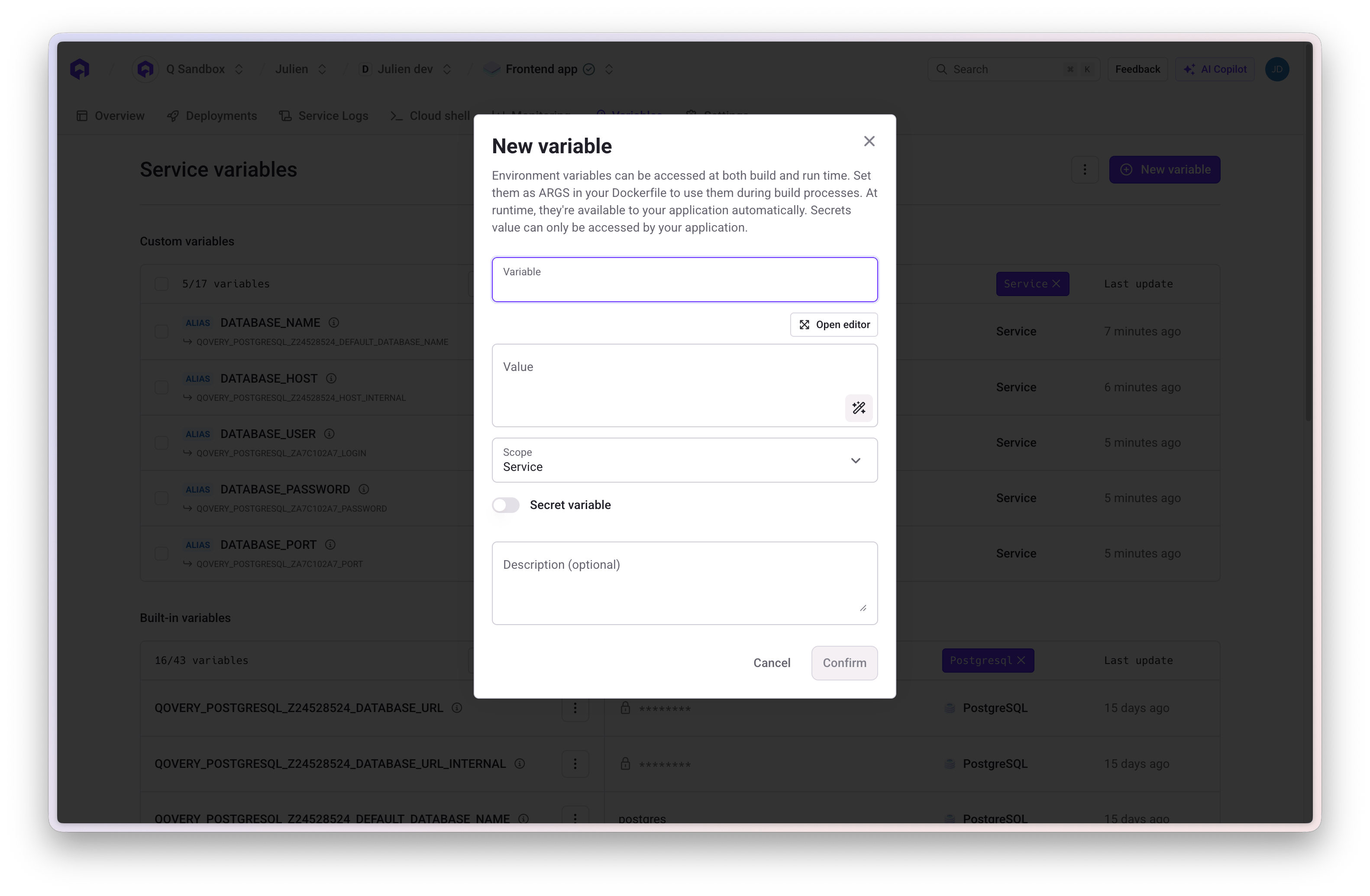
 Click **Add Variable** and configure:
* **Scope**: Project, Environment, or Service level
* **Key**: Variable name
* **Value**: Variable value or file content
* **Type**: Variable or Secret
* **Variable Type**: Standard or File (specify path if file)
Click **Add Variable** and configure:
* **Scope**: Project, Environment, or Service level
* **Key**: Variable name
* **Value**: Variable value or file content
* **Type**: Variable or Secret
* **Variable Type**: Standard or File (specify path if file)
 Save the variable and redeploy services to apply changes
### Variable Naming Rules
**Allowed**:
* Alphanumeric characters (A-Z, 0-9)
* Underscores (\_)
* Must start with a letter
* Uppercase recommended
**Not Allowed**:
* Cannot start with `QOVERY_` (reserved for built-in variables)
* Cannot start with `__` (double underscore)
* No hyphens or special characters
* No spaces
## Editing and Deleting Variables
### Editing
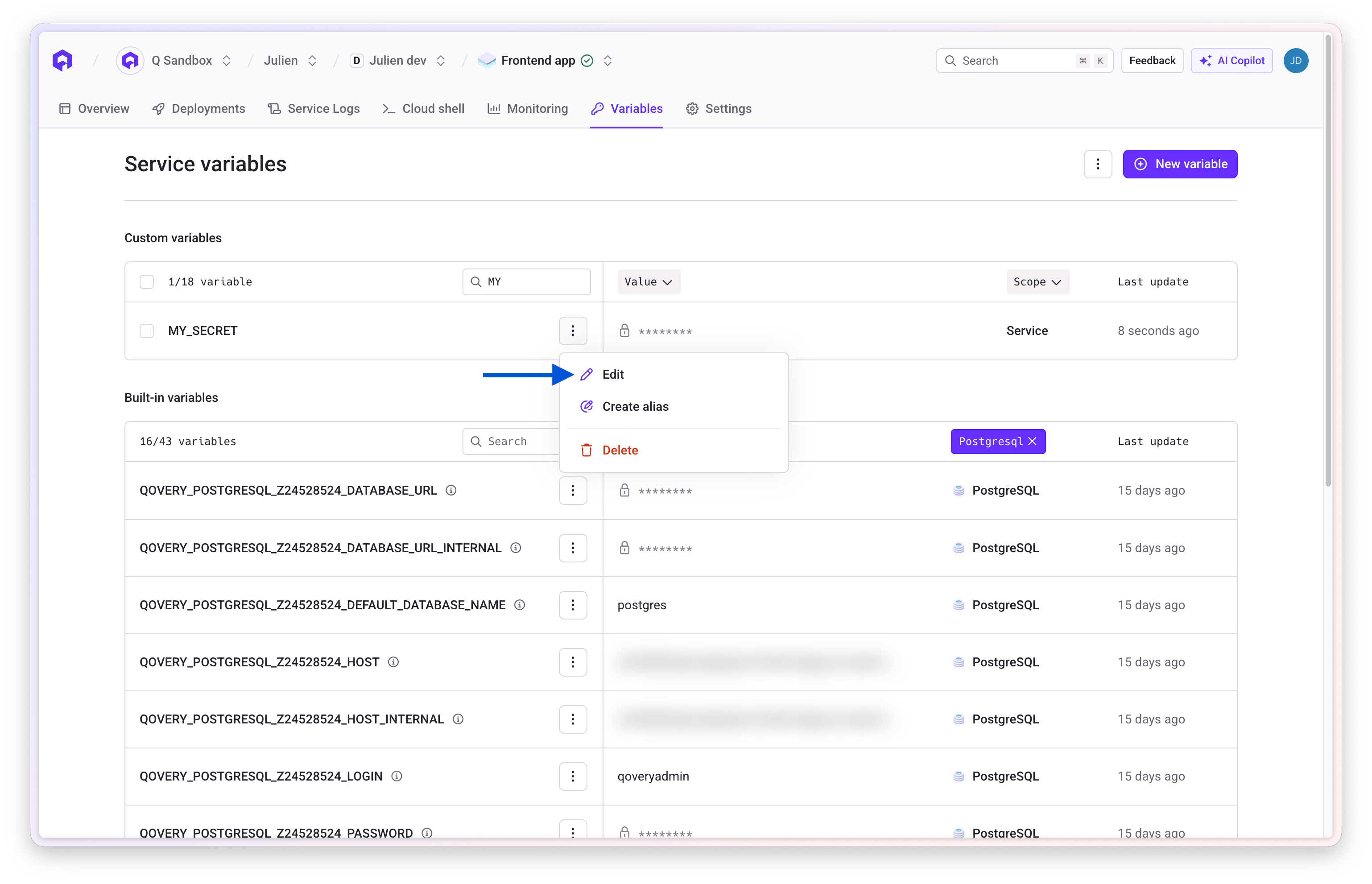
1. Locate variable in the **Variables** section
2. Click edit icon
3. Update value or settings
4. Save and redeploy
Save the variable and redeploy services to apply changes
### Variable Naming Rules
**Allowed**:
* Alphanumeric characters (A-Z, 0-9)
* Underscores (\_)
* Must start with a letter
* Uppercase recommended
**Not Allowed**:
* Cannot start with `QOVERY_` (reserved for built-in variables)
* Cannot start with `__` (double underscore)
* No hyphens or special characters
* No spaces
## Editing and Deleting Variables
### Editing
1. Locate variable in the **Variables** section
2. Click edit icon
3. Update value or settings
4. Save and redeploy
 For secrets, you cannot view the current value. You can only set a new value for security reasons.
### Deleting
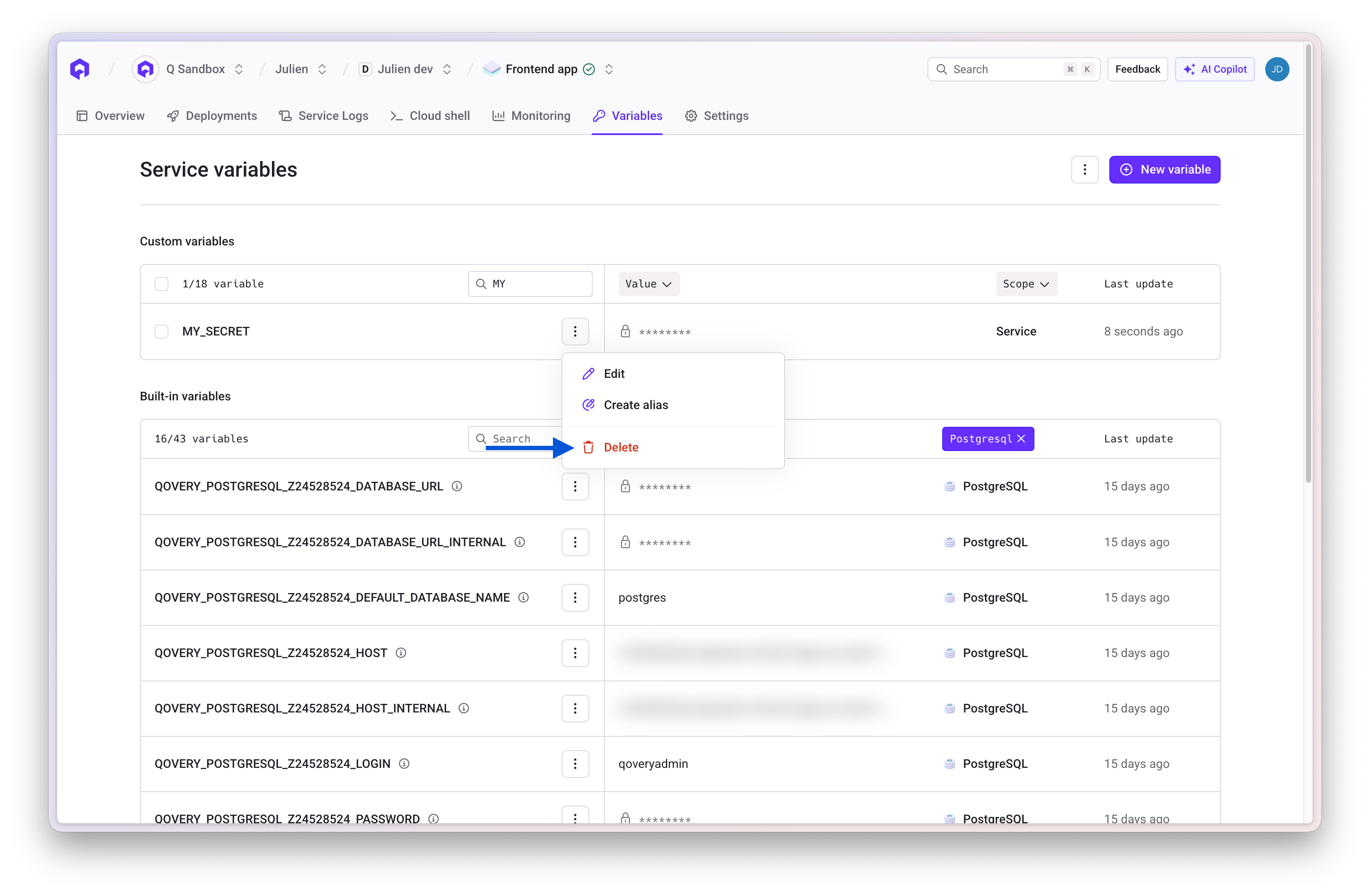
1. Select variable to remove
2. Click delete icon and confirm
3. Redeploy services
For secrets, you cannot view the current value. You can only set a new value for security reasons.
### Deleting
1. Select variable to remove
2. Click delete icon and confirm
3. Redeploy services
 ## Variable Interpolation
Reference other variables within variable values using `{{VARIABLE_NAME}}` syntax.
### Basic Interpolation
```bash theme={null}
# Define base variables
DATABASE_HOST=postgres.internal
DATABASE_PORT=5432
DATABASE_NAME=myapp
# Compose connection string
DATABASE_URL={{DATABASE_HOST}}:{{DATABASE_PORT}}/{{DATABASE_NAME}}
# Result: postgres.internal:5432/myapp
```
### With Built-in Variables
```bash theme={null}
# Use Qovery built-in variables
MY_DATABASE_URL=postgresql://{{QOVERY_DATABASE_MAIN_DB_HOST}}:{{QOVERY_DATABASE_MAIN_DB_PORT}}/{{QOVERY_DATABASE_MAIN_DB_DATABASE}}
# Compose service URLs
BACKEND_API={{QOVERY_APPLICATION_API_HOST_INTERNAL}}:{{QOVERY_APPLICATION_API_PORT}}
```
## Aliases
An alias exposes an existing variable under a different name, without duplicating its value. Use one when your application expects a specific variable name but the value is produced by Qovery (a built-in variable, a Terraform output, a Blueprint output) or defined elsewhere in your environment.
An alias always has a single **target**: the variable it points to. Resolving the alias at deployment time returns the target's current value.
### Creating an alias
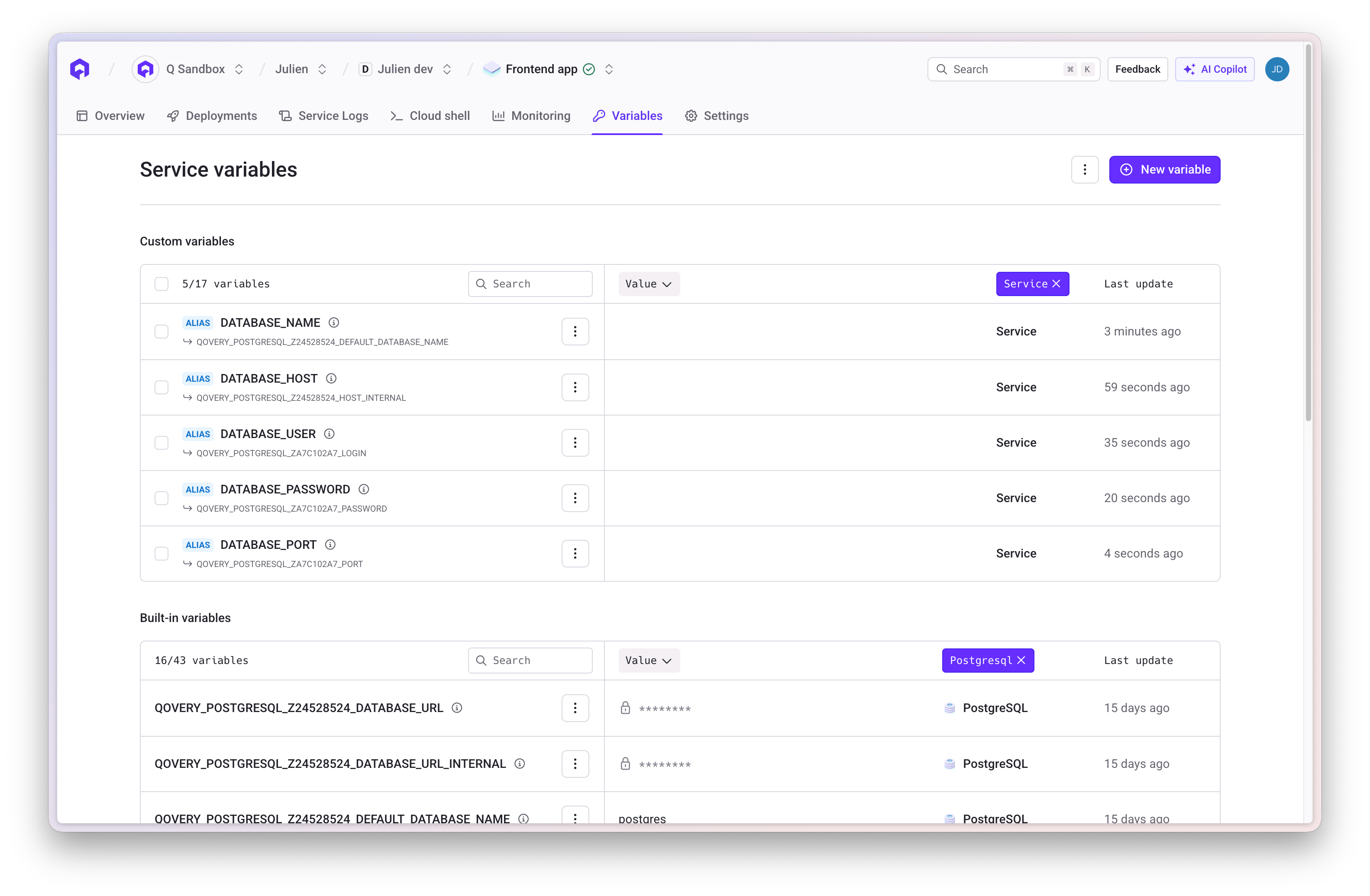
An alias is created from its target, not from scratch. In the Console, open the **Variables** section, find the variable you want to expose, and select **Create alias**. Then enter the name your application expects.
## Variable Interpolation
Reference other variables within variable values using `{{VARIABLE_NAME}}` syntax.
### Basic Interpolation
```bash theme={null}
# Define base variables
DATABASE_HOST=postgres.internal
DATABASE_PORT=5432
DATABASE_NAME=myapp
# Compose connection string
DATABASE_URL={{DATABASE_HOST}}:{{DATABASE_PORT}}/{{DATABASE_NAME}}
# Result: postgres.internal:5432/myapp
```
### With Built-in Variables
```bash theme={null}
# Use Qovery built-in variables
MY_DATABASE_URL=postgresql://{{QOVERY_DATABASE_MAIN_DB_HOST}}:{{QOVERY_DATABASE_MAIN_DB_PORT}}/{{QOVERY_DATABASE_MAIN_DB_DATABASE}}
# Compose service URLs
BACKEND_API={{QOVERY_APPLICATION_API_HOST_INTERNAL}}:{{QOVERY_APPLICATION_API_PORT}}
```
## Aliases
An alias exposes an existing variable under a different name, without duplicating its value. Use one when your application expects a specific variable name but the value is produced by Qovery (a built-in variable, a Terraform output, a Blueprint output) or defined elsewhere in your environment.
An alias always has a single **target**: the variable it points to. Resolving the alias at deployment time returns the target's current value.
### Creating an alias
An alias is created from its target, not from scratch. In the Console, open the **Variables** section, find the variable you want to expose, and select **Create alias**. Then enter the name your application expects.
 ```bash theme={null}
# Application expects DATABASE_URL
# Create an alias on the built-in variable of your database:
DATABASE_URL -> QOVERY_POSTGRESQL_Z1234ABCD_DATABASE_URL_INTERNAL
```
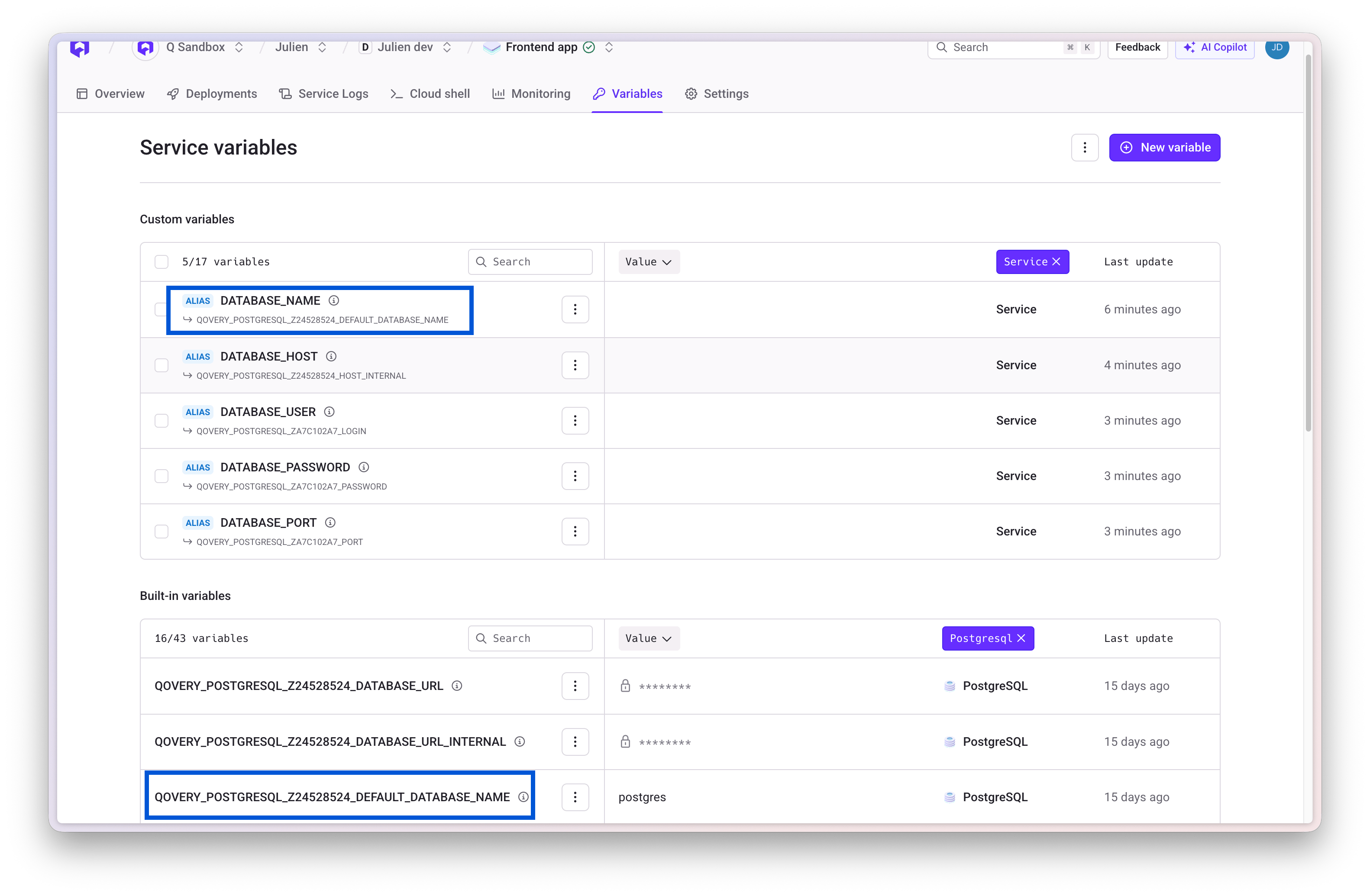
Create friendly names for service communication the same way:
```bash theme={null}
# Application expects DATABASE_URL
# Create an alias on the built-in variable of your database:
DATABASE_URL -> QOVERY_POSTGRESQL_Z1234ABCD_DATABASE_URL_INTERNAL
```
Create friendly names for service communication the same way:
 ```bash theme={null}
API_HOST -> QOVERY_APPLICATION_Z5678EF90_HOST_INTERNAL
REDIS_HOST -> QOVERY_CONTAINER_Z2468ACE0_HOST_INTERNAL
POSTGRES_HOST -> QOVERY_POSTGRESQL_Z1234ABCD_HOST_INTERNAL
```
Built-in variable names embed the service identifier, so copy the exact name from the **Variables** list rather than typing it.
Pick the variable your application can actually reach. `..._DATABASE_URL` and `..._HOST` are the external endpoints and only resolve when the database visibility is set to `PUBLIC`. For a service running inside the cluster, target `..._DATABASE_URL_INTERNAL` or `..._HOST_INTERNAL`, as in the examples above.
### Alias rules
* **The alias inherits the target's type.** An alias on a secret is a secret; an alias on a plain variable is a plain variable. You do not choose this, and it cannot be changed afterwards. Re-pointing a secret alias to a plain variable (or the reverse) is rejected with `400 Variable tries to alias between secret and env`.
* **An alias cannot target another alias.** This would allow circular references that never resolve.
* **An alias cannot target an external secret.**
* **An alias cannot target a variable defined at a narrower scope.** An environment-scoped alias cannot point to a service-scoped variable.
* **Two variables cannot share a name in the same scope.** Creating or renaming a variable to a name already in use returns `409 Variable already exists`.
* **Changes take effect on the next deployment.** Creating, renaming, re-pointing, or deleting a variable does not alter the environment of pods that are already running. Redeploy the service to apply it.
### Changing the target of an alias
The Console does not allow changing an alias target: the target field is read-only once the alias exists. The API does, with a single call that keeps the alias name, its ID, and its history:
```bash theme={null}
curl -X PUT "https://api.qovery.com/variable/" \
-H "Authorization: Token $QOVERY_API_TOKEN" \
-H "Content-Type: application/json" \
-d '{
"key": "REDIS_URL",
"value": "QOVERY_OUTPUT_TERRAFORM_Z1234ABCD_VALKEY_URL"
}'
```
`key` is the alias name and must be sent unchanged. `value` is the **name of the new target variable**, not a value. The new target must satisfy every rule above, in particular matching secret or plain type.
This is the recommended way to move an alias from one backing resource to another, for example when migrating a service from a legacy database to a new one.
This call only re-points a variable whose type is already `ALIAS`. Sending it to a plain variable does **not** turn it into an alias: types cannot be changed after creation, so the request succeeds with `200` and stores the target name as a literal string. The service then starts with `REDIS_URL=QOVERY_OUTPUT_TERRAFORM_Z1234ABCD_VALKEY_URL` instead of a connection URL, with no error reported. Check `variable_type` in the response of `GET /variable` before re-pointing. To replace a plain variable with an alias, follow [Converting a plain variable into an alias](#converting-a-plain-variable-into-an-alias).
Do not delete an alias in order to recreate it against a different target. Between the delete and the recreation the variable no longer exists, and any deployment triggered in that window starts your service without it.
### Swapping aliases from the Console
If you cannot use the API, you can reach the same result by renaming, which the Console does allow. The order matters: a name can only be taken once it has been freed.
Create an alias on the new target, named `REDIS_URL_NEW`. The existing `REDIS_URL` is untouched and still resolves to the old target.
Rename `REDIS_URL` to `REDIS_URL_LEGACY`. Renaming before this step fails with `409 Variable already exists`.
Rename `REDIS_URL_NEW` to `REDIS_URL`.
Redeploy the service. It now reads the new target. Keep `REDIS_URL_LEGACY` until the migration is confirmed, then delete it.
### Converting a plain variable into an alias
A variable's type cannot be changed after creation, and neither can its secret flag. Turning an existing plain variable into an alias means deleting it and creating the alias in its place, since both would otherwise share the same name in the same scope.
Perform both operations before triggering a deployment. Running pods keep their current environment, so the intermediate state is not visible to your application as long as no deployment happens in between. The order cannot be reversed: creating the alias first returns `409 Variable already exists`.
```bash theme={null}
# 1. Remove the plain variable that occupies the name
curl -X DELETE "https://api.qovery.com/variable/" \
-H "Authorization: Token $QOVERY_API_TOKEN"
# 2. Create the alias on the target variable, under the freed name
curl -X POST "https://api.qovery.com/variable//alias" \
-H "Authorization: Token $QOVERY_API_TOKEN" \
-H "Content-Type: application/json" \
-d '{
"key": "REDIS_URL",
"alias_scope": "ENVIRONMENT",
"alias_parent_id": ""
}'
# 3. Redeploy the service
```
Note that the alias is created on the **target's** ID, and that no target name is sent: the alias is derived from the variable the call is addressed to, and inherits its secret flag. Both IDs come from `GET /variable?parent_id=&scope=ENVIRONMENT`.
This is the correct fix when a connection string has been pasted in as a plain value: delete the plain variable, then create an alias on the built-in variable that produces the same URL. The credential then stays in the built-in secret instead of being stored, displayed, and exported as text.
### Deleting an alias or its target
* **Deleting an alias** removes only that alias. The target variable and its value are preserved.
* **Deleting a target** also deletes every alias pointing to it, along with any override defined at a narrower scope. Check which aliases depend on a variable before deleting it.
Deleting a database, a Terraform service, or a Blueprint removes its built-in and output variables, and therefore every alias built on them.
## Overrides
When variables are defined at multiple scopes, narrower scopes override broader ones:
```bash theme={null}
# Project Scope
LOG_LEVEL=warn
# Environment Scope (overrides project)
LOG_LEVEL=info
# Service Scope (overrides environment)
LOG_LEVEL=debug
# Result: Service sees LOG_LEVEL=debug
```
## Import and Export
Import and export variables in bulk using `.env` file format.
### Exporting
1. Open the **Variables** section
2. Click **Export** to download as `.env` file
3. Secret values are exported as `***` for security
### Importing
Create a `.env` file with key-value pairs:
```bash theme={null}
NEW_VAR_1=value1
NEW_VAR_2=value2
FEATURE_FLAG=true
```
Click **Import** and select your `.env` file
Qovery shows which variables will be:
* Created (new)
* Updated (existing)
* Skipped (conflicts)
Review and confirm the import
**Import Restrictions**:
* Cannot import built-in variables (starting with `QOVERY_`)
* Cannot overwrite existing secrets (must delete first)
* Cannot import variables with invalid names
Existing non-secret variables at the same scope will be updated during import. Use carefully to avoid overwriting configuration.
## Service Interconnection
Use environment variables to connect services within your environment.
### Database Connection
```javascript theme={null}
// Using built-in variables
const { Client } = require('pg');
const client = new Client({
host: process.env.QOVERY_DATABASE_MAIN_DB_HOST,
port: process.env.QOVERY_DATABASE_MAIN_DB_PORT,
database: process.env.QOVERY_DATABASE_MAIN_DB_DATABASE,
user: process.env.QOVERY_DATABASE_MAIN_DB_USERNAME,
password: process.env.QOVERY_DATABASE_MAIN_DB_PASSWORD,
});
// Or use connection URI
const client = new Client({
connectionString: process.env.QOVERY_DATABASE_MAIN_DB_CONNECTION_URI
});
```
### Application-to-Application Communication
```javascript theme={null}
// Internal service communication
const backendUrl = `http://${process.env.QOVERY_APPLICATION_API_HOST_INTERNAL}:${process.env.QOVERY_APPLICATION_API_PORT}`;
const response = await fetch(`${backendUrl}/api/data`);
```
## Best Practices
* **Security**: Always mark sensitive data as secrets
* **Naming**: Use UPPER\_CASE\_WITH\_UNDERSCORES and descriptive names
* **Organization**: Use appropriate scopes (Project for shared, Environment for env-specific, Service for unique)
* **Rotation**: Periodically rotate sensitive credentials
* **Documentation**: Document variable purposes and expected values
* **Cleanup**: Remove unused variables regularly
## Related Resources
Configure applications with environment variables
Connect databases using built-in variables
Deploy with configured variables
Use environment variables for database connections
```bash theme={null}
API_HOST -> QOVERY_APPLICATION_Z5678EF90_HOST_INTERNAL
REDIS_HOST -> QOVERY_CONTAINER_Z2468ACE0_HOST_INTERNAL
POSTGRES_HOST -> QOVERY_POSTGRESQL_Z1234ABCD_HOST_INTERNAL
```
Built-in variable names embed the service identifier, so copy the exact name from the **Variables** list rather than typing it.
Pick the variable your application can actually reach. `..._DATABASE_URL` and `..._HOST` are the external endpoints and only resolve when the database visibility is set to `PUBLIC`. For a service running inside the cluster, target `..._DATABASE_URL_INTERNAL` or `..._HOST_INTERNAL`, as in the examples above.
### Alias rules
* **The alias inherits the target's type.** An alias on a secret is a secret; an alias on a plain variable is a plain variable. You do not choose this, and it cannot be changed afterwards. Re-pointing a secret alias to a plain variable (or the reverse) is rejected with `400 Variable tries to alias between secret and env`.
* **An alias cannot target another alias.** This would allow circular references that never resolve.
* **An alias cannot target an external secret.**
* **An alias cannot target a variable defined at a narrower scope.** An environment-scoped alias cannot point to a service-scoped variable.
* **Two variables cannot share a name in the same scope.** Creating or renaming a variable to a name already in use returns `409 Variable already exists`.
* **Changes take effect on the next deployment.** Creating, renaming, re-pointing, or deleting a variable does not alter the environment of pods that are already running. Redeploy the service to apply it.
### Changing the target of an alias
The Console does not allow changing an alias target: the target field is read-only once the alias exists. The API does, with a single call that keeps the alias name, its ID, and its history:
```bash theme={null}
curl -X PUT "https://api.qovery.com/variable/" \
-H "Authorization: Token $QOVERY_API_TOKEN" \
-H "Content-Type: application/json" \
-d '{
"key": "REDIS_URL",
"value": "QOVERY_OUTPUT_TERRAFORM_Z1234ABCD_VALKEY_URL"
}'
```
`key` is the alias name and must be sent unchanged. `value` is the **name of the new target variable**, not a value. The new target must satisfy every rule above, in particular matching secret or plain type.
This is the recommended way to move an alias from one backing resource to another, for example when migrating a service from a legacy database to a new one.
This call only re-points a variable whose type is already `ALIAS`. Sending it to a plain variable does **not** turn it into an alias: types cannot be changed after creation, so the request succeeds with `200` and stores the target name as a literal string. The service then starts with `REDIS_URL=QOVERY_OUTPUT_TERRAFORM_Z1234ABCD_VALKEY_URL` instead of a connection URL, with no error reported. Check `variable_type` in the response of `GET /variable` before re-pointing. To replace a plain variable with an alias, follow [Converting a plain variable into an alias](#converting-a-plain-variable-into-an-alias).
Do not delete an alias in order to recreate it against a different target. Between the delete and the recreation the variable no longer exists, and any deployment triggered in that window starts your service without it.
### Swapping aliases from the Console
If you cannot use the API, you can reach the same result by renaming, which the Console does allow. The order matters: a name can only be taken once it has been freed.
Create an alias on the new target, named `REDIS_URL_NEW`. The existing `REDIS_URL` is untouched and still resolves to the old target.
Rename `REDIS_URL` to `REDIS_URL_LEGACY`. Renaming before this step fails with `409 Variable already exists`.
Rename `REDIS_URL_NEW` to `REDIS_URL`.
Redeploy the service. It now reads the new target. Keep `REDIS_URL_LEGACY` until the migration is confirmed, then delete it.
### Converting a plain variable into an alias
A variable's type cannot be changed after creation, and neither can its secret flag. Turning an existing plain variable into an alias means deleting it and creating the alias in its place, since both would otherwise share the same name in the same scope.
Perform both operations before triggering a deployment. Running pods keep their current environment, so the intermediate state is not visible to your application as long as no deployment happens in between. The order cannot be reversed: creating the alias first returns `409 Variable already exists`.
```bash theme={null}
# 1. Remove the plain variable that occupies the name
curl -X DELETE "https://api.qovery.com/variable/" \
-H "Authorization: Token $QOVERY_API_TOKEN"
# 2. Create the alias on the target variable, under the freed name
curl -X POST "https://api.qovery.com/variable//alias" \
-H "Authorization: Token $QOVERY_API_TOKEN" \
-H "Content-Type: application/json" \
-d '{
"key": "REDIS_URL",
"alias_scope": "ENVIRONMENT",
"alias_parent_id": ""
}'
# 3. Redeploy the service
```
Note that the alias is created on the **target's** ID, and that no target name is sent: the alias is derived from the variable the call is addressed to, and inherits its secret flag. Both IDs come from `GET /variable?parent_id=&scope=ENVIRONMENT`.
This is the correct fix when a connection string has been pasted in as a plain value: delete the plain variable, then create an alias on the built-in variable that produces the same URL. The credential then stays in the built-in secret instead of being stored, displayed, and exported as text.
### Deleting an alias or its target
* **Deleting an alias** removes only that alias. The target variable and its value are preserved.
* **Deleting a target** also deletes every alias pointing to it, along with any override defined at a narrower scope. Check which aliases depend on a variable before deleting it.
Deleting a database, a Terraform service, or a Blueprint removes its built-in and output variables, and therefore every alias built on them.
## Overrides
When variables are defined at multiple scopes, narrower scopes override broader ones:
```bash theme={null}
# Project Scope
LOG_LEVEL=warn
# Environment Scope (overrides project)
LOG_LEVEL=info
# Service Scope (overrides environment)
LOG_LEVEL=debug
# Result: Service sees LOG_LEVEL=debug
```
## Import and Export
Import and export variables in bulk using `.env` file format.
### Exporting
1. Open the **Variables** section
2. Click **Export** to download as `.env` file
3. Secret values are exported as `***` for security
### Importing
Create a `.env` file with key-value pairs:
```bash theme={null}
NEW_VAR_1=value1
NEW_VAR_2=value2
FEATURE_FLAG=true
```
Click **Import** and select your `.env` file
Qovery shows which variables will be:
* Created (new)
* Updated (existing)
* Skipped (conflicts)
Review and confirm the import
**Import Restrictions**:
* Cannot import built-in variables (starting with `QOVERY_`)
* Cannot overwrite existing secrets (must delete first)
* Cannot import variables with invalid names
Existing non-secret variables at the same scope will be updated during import. Use carefully to avoid overwriting configuration.
## Service Interconnection
Use environment variables to connect services within your environment.
### Database Connection
```javascript theme={null}
// Using built-in variables
const { Client } = require('pg');
const client = new Client({
host: process.env.QOVERY_DATABASE_MAIN_DB_HOST,
port: process.env.QOVERY_DATABASE_MAIN_DB_PORT,
database: process.env.QOVERY_DATABASE_MAIN_DB_DATABASE,
user: process.env.QOVERY_DATABASE_MAIN_DB_USERNAME,
password: process.env.QOVERY_DATABASE_MAIN_DB_PASSWORD,
});
// Or use connection URI
const client = new Client({
connectionString: process.env.QOVERY_DATABASE_MAIN_DB_CONNECTION_URI
});
```
### Application-to-Application Communication
```javascript theme={null}
// Internal service communication
const backendUrl = `http://${process.env.QOVERY_APPLICATION_API_HOST_INTERNAL}:${process.env.QOVERY_APPLICATION_API_PORT}`;
const response = await fetch(`${backendUrl}/api/data`);
```
## Best Practices
* **Security**: Always mark sensitive data as secrets
* **Naming**: Use UPPER\_CASE\_WITH\_UNDERSCORES and descriptive names
* **Organization**: Use appropriate scopes (Project for shared, Environment for env-specific, Service for unique)
* **Rotation**: Periodically rotate sensitive credentials
* **Documentation**: Document variable purposes and expected values
* **Cleanup**: Remove unused variables regularly
## Related Resources
Configure applications with environment variables
Connect databases using built-in variables
Deploy with configured variables
Use environment variables for database connections